
Оглавление
Введение
Обсуждаются вопросы использования и настройки операционной системы Windows 10 и Windows 11.
Работаем с Windows 10
How to Transfer Videos from Windows 10 to iPhone with iTunes
However, transferring these videos using iTunes is a drag. You need to:
Step 1. Connect your iPhone or iPad to a computer.
Step 2. Select the iOS device.
Step 3. Click Apps.
Step 4. Scroll down to the File Sharing section of the iTunes window.
Step 5. Click on the app to which you want to transfer files.
Step 6. Click Add.
Step 7. Choose a file.
Step 8. Then click Add again.
If you don’t mind the data loss or there are no files existing on your iPhone, transferring photos to your iPhone from PC using iTunes is also a workable way.
Step 1. Connect your iPhone to your PC with a USB cable and wait for iTunes to launch automatically.
Step 2. Unlock your device and trust the computer. If required, enter your iPhone passcode to continue.
Step 3. In iTunes, click the “Device” icon in the top left corner.
Step 4. Choose “Photos” in the left panel and check “Sync Photos”.
Step 5. Select the photos you want to transfer from the option “Copy photos from”.
Step 6. After the selection, click “Apply” to start syncing photos from Windows 10 to iPhone. When it has done, go to the Photos app on your iOS device to check the transferred items.
Как добавить шрифт в Windows 10
1. Start (Пуск)
2. Settings (Параметры)
3. Personalization (Персонализация)
4. Fonts (Шрифты)
Откроется список уже установленных на компьютере шрифтов с возможностью их предварительного просмотра или, при необходимости, удаления
5. Нажать по шрифту (например: Font: KidTYPEPaint), открывается окно с информацией о шрифте.
Если шрифт нужно удалить, то нажать кнопку Uninstall (Удалить).
Если шрифт не установлен, то его нужно установить, загрузив из Интернета.
Windows 10 не понимает (некорректно отображает) русский текст.
Чтобы настроить корректное восприятие операционной системой кириллицы, необходимо выполнить следующие шаги (в скобках приводятся названия элементов интерфейса для русской настройки операционной системы):
– войти в Controle Panel (Панель управления), кликнув правой кнопкой по значку Windows;
– зайти в раздел Clock, Language, and Region (Часы, язык и регион);
– зайти в Region (Региональные стандарты);
– выбрать вкладку Administrative (Дополнительно), расположенную в верхней части формы (окна Region);
– нажать кнопку Change system locale…(Изменить язык системы…);
– выбрать Russian (Russia) (Русский) в выпадающем списке Current system local и нажать кнопку “ОК“;
– Нажать Restart Now (Перезагрузить сейчас);
После перезагрузки русский текст будет воспроизводиться без искажений (так называемых иероглифов кракозябров).
Как изменить настройки утилиты File Explorer (Проводник) в Windows 10
– Открыть File Explorer (Проводник).
– Нажать File (Файл). Появится меню File (Файл).
– Нажать Change Folder and Search Options (Изменить папку и параметры поиска).
– На вкладке General изменить нужные настройки.
– На вкладке View (Просмотр) можно изменить нужные дополнительные параметры.
– На вкладке Search (Поиск) можно изменить работу поиска.
iTunes: iPhone или iPad не виден в Windows 10
1. Убедитесь, что установлена последняя версия iTunes.
2. Подключите Apple девайс к USB-порту компьютера с помощью прилагаемого USB-кабеля.
3. Убедитесь, что на Apple устройстве открыт главный интерфейс (Home screen). На запрос “Trust“, выберите “Trust the device“.
4. В Windows выберите Start -> Control Panel -> Devices Manager -> Devices and Printers.
5. Ваш iPhone или iPad должен отображаться в разделе “Unspecified”
6. Кликнуть правой кнопкой мыши и выберите “Properties“.
7. Выберите вкладку “Hardware”, затем нажмите кнопку “Properties”.
[img]https://www.technipages.com/wp-content/uploads/2012/10/Hardware-Properties-button.png[/img]
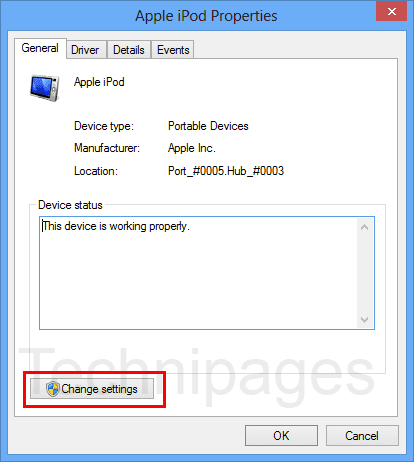
8. На вкладке “General” нажмите кнопку “Change settings”.
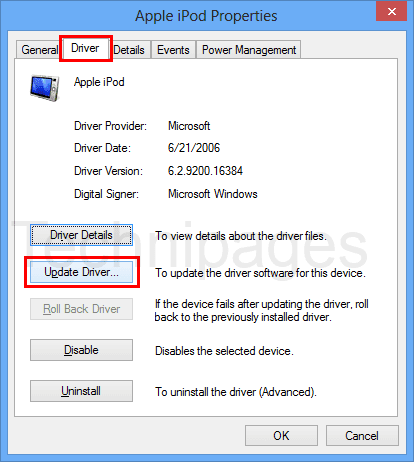
9. Выберите вкладку “Driver”, затем выберите “Update Driver“
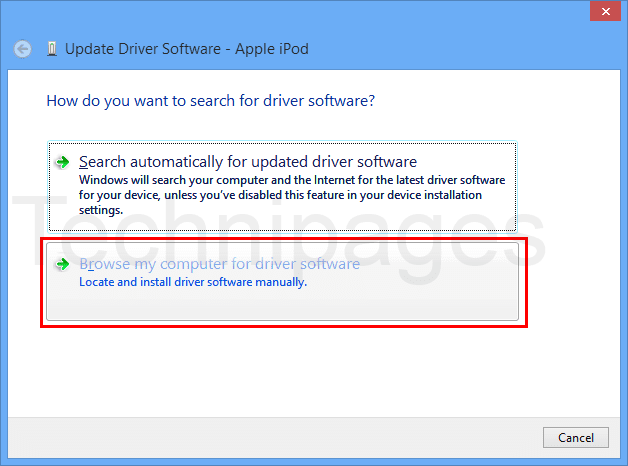
10. Выберите “Browse my computer for driver software“.
11. Выберите “Browse…”, затем перейдите к «C: \ Program Files \ Common Files \ Apple \ Support Mobile Device \ Drivers». Если у вас нет этой папки, выберите «C: \ Program Files (x86) \ Common Files \ Apple \ Support Mobile Device \ Drivers». Если вы все еще не видите его, попробуйте удалить (Uninstalling) и переустановить (Reinstalling) iTunes.
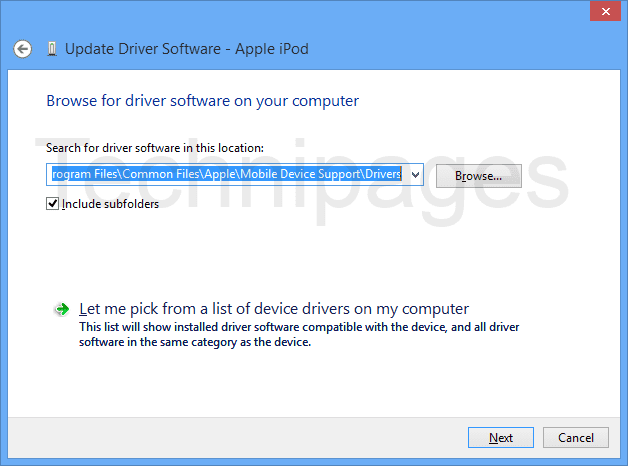
12. Нажмите “Next” -> “Close“.
Apple устройство теперь должно быть успешно обнаружено в программе iTunes.
Источник: https://www.technipages.com/itunes-fix-iphone-or-ipad-not-detected-in-windows
Как разблокировать исполнимый файл (Acrobat.exe)
Загрузил через торрент Adobe Acrobat Pro DC v2019.010.20069 Portable by conservator Acrobat.exe
Запускаю исполнимый файл Acrobat.exe, получаю предупреждение:
Windows protected your PC
Microsoft Defender SmartScreen prevented an unrecognized app from starting. Running this app might put your PC at risk.
Прошу запустить. Запускается. Но каждый раз при загрузке одно и тоже. Как этого избежать. Покопался в Интернете. И вот что нашёл. И это сработало.
На запрос: What to do when Windows Defender blocks unrecognized apps
Нашёл работающий ответ (на английском):
How to disable SmartScreen
On the other hand, if you’re tired of SmartScreen’s methods or have a third-party tool which deals with this kind of threats, you can disable it for good. Since the introduction of Windows Security Center, you can disable this feature with ease. We made sure to provide you with the required steps below.
1. Open Windows Defender from the notification area. (Settings -> Windows Security -> App & browser control)
2. Select App & browser control.
3. Under the “Check apps and files” section, select Off.
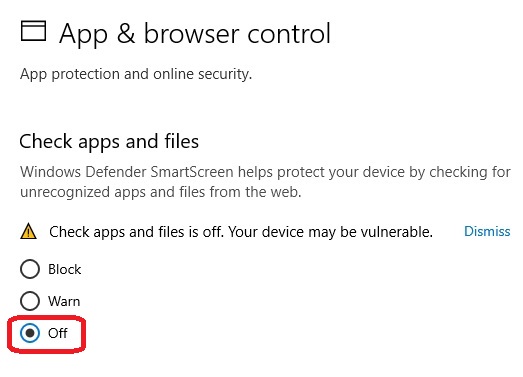
After that, you shouldn’t see SmartScreen prompts anymore.
Запускаю исполнимый файл Acrobat.exe, получаю новое предупреждение:
The publisher could not be verified. Are you sure you want to run this software?
На запрос в Интернете нашел работающий ответ (на английском):
Windows: Disable “Publisher Could Not Be Verified” Messages
Option 1 – Group Policy Editor
1. Hold the Windows Key, then press “R” to bring up the Run dialog box.
2. Type “gpedit.msc“, then select “OK“.
3. Go to “User Configuration” > “Administrative Templates” > “Windows Components” > “Attachment Manager“.
4. Open the “Inclusion list for moderate risk file types” setting.
5. Set the policy to “Enabled“, then add “*.exe;” or whatever the file extension you are using to the “Specify high risk extensions” box.
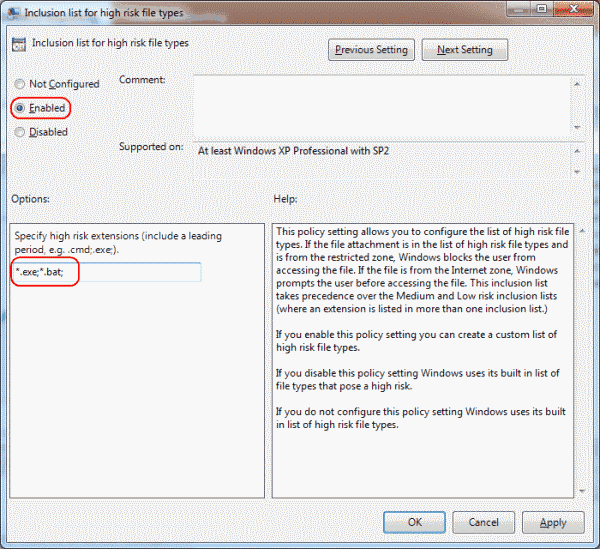
Всё хорошо загружается!
Работаем с Windows 11
How to give permission to the folder C\Users\olegt\Documents\My Videos
– Right-click on the folder which you’re unable to access ‘My Videos‘ and select Properties;
– Click on ‘Security’ tab and under ‘Group or user names’ click on ‘Edit’;
– Click on ‘Add’ and type ‘everyone’;
– Click on ‘Check names’ and then click ‘OK’;
– Select ‘Everyone’ and under ‘Allow’ select ‘Full control’ and click on ‘Apply’ and Click ‘Ok’.
После этого:
– Right-click on the folder which you’re unable to access ‘My Videos‘ and select Properties;
– Click on ‘Security’ tab;
– ‘Group or user names’ click on ‘Edit’;
– Advanced;
Opening windows: Advanced Security Setting for My Videos
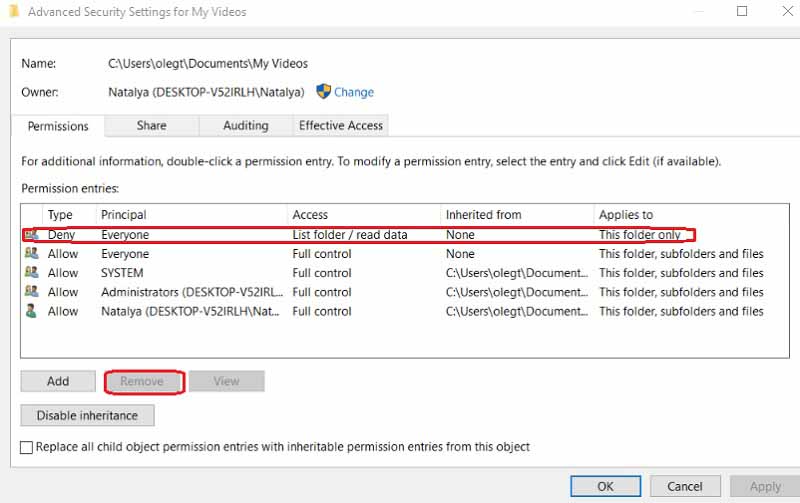
-Select and Remove Deny Everyone … line
-Apply -> OK -> OK
Access to the folder My Videos is allowed!!!
Изображение на экране компьютера Windows 11 в режиме Lock screen
Setting -> Personalization -> Lock screen -> Background (Windows spotlight/Picture/Slideshow) -> Choose your picture
-> Show lock screen background picture on the sign-in screen: On
Графический редактор Paint
Вставляем графический файл
Вставляем графический файл на полотно (canvas) редактора Paint:
File -> Import to canvas -> From a file
Открыть нужную папку и выбрать графический файл.
Если нужно поместить на полотно редактора несколько картинок (графических файлов), то операцию нужно повторить несколько раз.
Источники
https://www.technipages.com/itunes-fix-iphone-or-ipad-not-detected-in-windows